Teach the unit you already passed.
Student Experts are current students who did well in a course unit and are approved to teach it while they keep studying. Upload your notes and tutorials, set your own prices, run live sessions, and get paid into a CourseMate wallet.
Coming soon Launching on iOS and Android.
How it works
Four steps from your first application to your first withdrawal.
-
Apply
Five minutes in the app menu. Reviewed within 1–3 business days.
-
Upload and price
Notes, tutorials, past papers and more, attached to the exact course unit.
-
Go live
Host paid sessions now or schedule them ahead. Seats are held in escrow.
-
Get paid
Sales and sessions land in your wallet. Withdraw to MTN or Airtel any time.
Apply in four steps
Open the app menu and tap Become a Student Expert. The application takes about five minutes.
-
Student info
Your student number, a clear photo of the front and back of your student ID, and a phone number you verify with a six-digit SMS code.
-
Academics
Your current CGPA out of 5.0 (it will be verified), your transcript (PDF preferred; JPG or PNG accepted, up to 10 MB), the year you are in, and up to three course units from your programme that you are confident to teach.
-
Video intro
A short 1–2 minute video about yourself, your academic journey and why you would make a great Student Expert (MP4, MOV or WebM, up to 100 MB). You choose whether it is public or visible to admins only.
-
Review and submit
Check everything, then submit. Applications cannot be edited after submission, but you can withdraw a pending one and apply again.
The admin team reviews applications within 1–3 business days and you are notified in the app. If an application is not approved you see the reviewer's note and can fix the details and apply again.
Once approved, the menu gains Switch to Student Expert View. You can move between the student app and the expert view whenever you like — you are still a student.
What you can upload
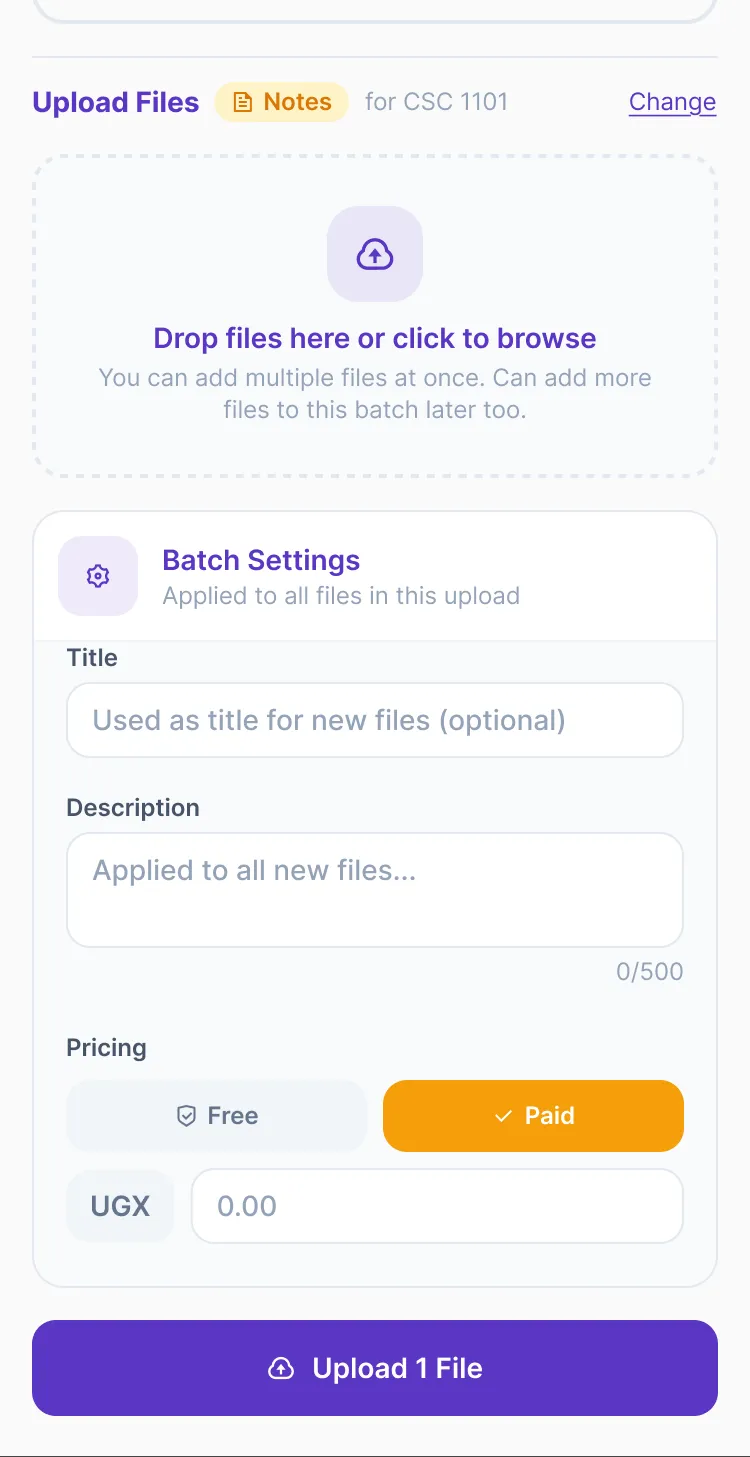
From the expert view, Upload Content walks you through year → course unit → type → files. Content is always attached to a specific course unit so students find it in the right place.
| Type | What it is |
|---|---|
| Video Tutorial | Recorded lessons and walkthroughs |
| Notes | Lecture notes, slides, handouts |
| Summary / Cheatcode | Condensed notes, quick references |
| Past Papers | Previous exams, tests, quizzes |
| Timetable | Class schedules, exam dates, calendars |
| Course Outline | Syllabus, learning objectives, topics |
| Books | Textbooks, reference books, e-books |
- Upload 1–20 files in a batch, and add more to the batch later.
- Videos: MP4, MOV, M4V or WebM. MP4 (H.264) plays for every student; some iPhone (HEVC) recordings may not play on older Android phones or in a browser.
- Documents: PDF, Word, PowerPoint, Excel, images, text, CSV or ZIP.
- CourseMate generates a branded cover from the course, title and type; for tutorials you can use your own image instead.
- Give the whole batch one title, description and price, or set them per file.
Price your content
Every upload is Free or Paid, in UGX, up to 999,999. You set the price.
-
Notes are always free
Lecture notes are the baseline every student needs. They bring students to your course unit, where your paid tutorials, summaries, papers and sessions sit.
-
Preview, then unlock
Students see the opening of a paid document or a sample of a video, and unlock the rest with MTN or Airtel mobile money.
-
Edit any time
Change a piece's title, price, category or course unit after it is published and students see it straight away. To replace the file itself, upload it again.
Fees. A platform fee is deducted from each content sale. For live sessions, CourseMate deducts a platform fee from your price and adds a small session fee to what the student pays. Before you publish a session the app shows the full breakdown — your price, the student's total, the platform fee and what you receive.
Run live sessions
From the Discussion tab, tap Go Live. You can host for any course unit in your approved application.
-
Set it up
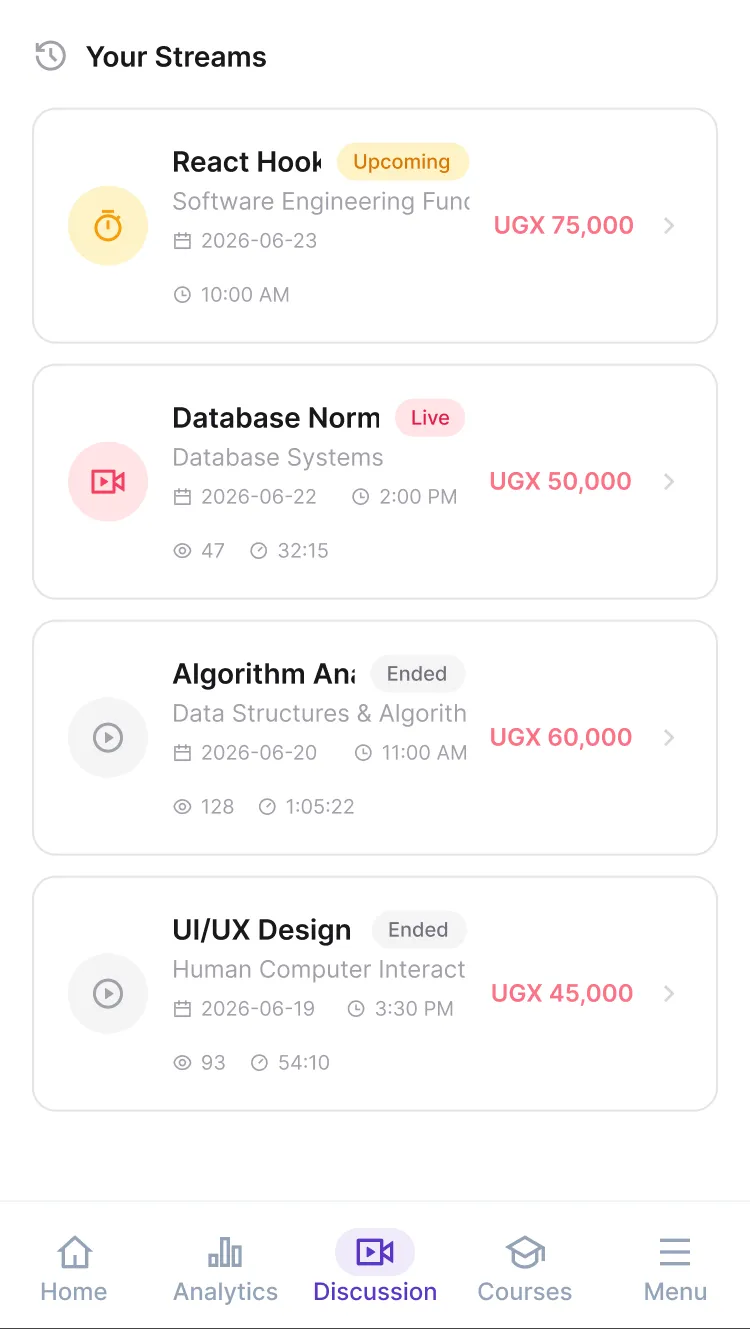
A title, the course unit and an optional description. A duration of 30 minutes, 1 hour, 1 hour 30 minutes or 2 hours. A price, minimum UGX 1,000.
-
Now or later
Go Live Now or Schedule for Later — up to a year ahead. Scheduled sessions appear to students under Upcoming; live ones under Live now.
-
Paid in escrow
Students buy a seat with mobile money. Their payment is held in escrow and released to you after the session ends, so they only pay for sessions that happen.
In the call you have camera, microphone, screen sharing and chat; students can raise a hand and you choose who speaks.
Before you can host you need a CourseMate wallet with a PIN, because session earnings are paid into it.
Earn while you sleep
Live sessions pay once. Everything else keeps paying.
-
Content sales
Each time a student unlocks your tutorial, summary, past paper or book, the sale is credited to your wallet. Upload once, sell to every cohort that takes the unit.
-
Session recordings
Your live sessions are recorded, and students who missed them can buy the replay afterwards, so a good session keeps earning after it ends.
-
Analytics and profile
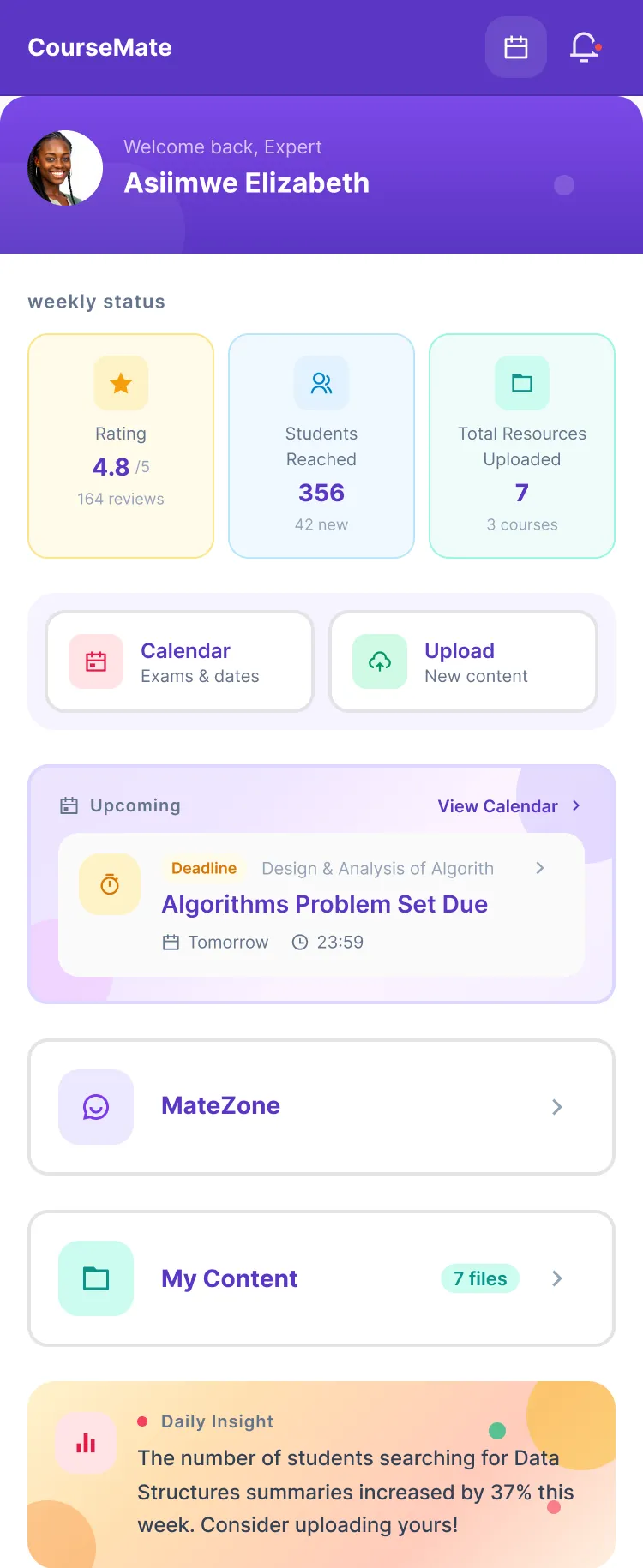
Students Reached, Total Revenue, your Rating and review count, Resources Uploaded, and your Most Sold, Most Downloaded, Most Liked and Most Shared items — this week, this month or overall.
Students see a public profile with your student count, rating, reviews and sessions, plus badges such as Top Rated, Well Reviewed and 100+ Students.
Get paid
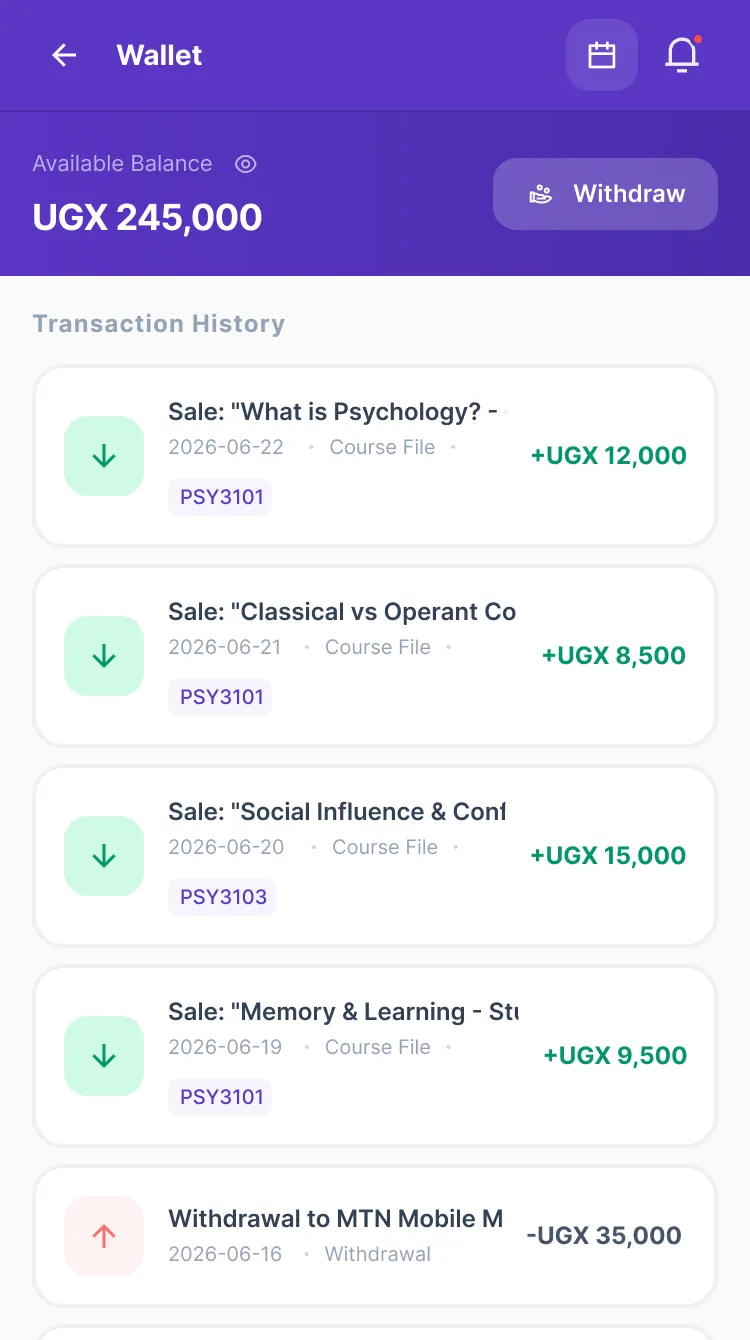
Your earnings sit in a CourseMate wallet in UGX. There is no payout day to wait for — withdraw whenever you want.
-
Tap Withdraw
Enter the amount you want to take out.
-
Confirm
The six-digit code sent to your phone, and your wallet PIN.
-
Receive
The money is sent to the MTN or Airtel number on your profile.
Deposits, sales, withdrawals, fees and refunds all appear in your transaction history.
What it looks like
The expert view, as it is in the app today.
-
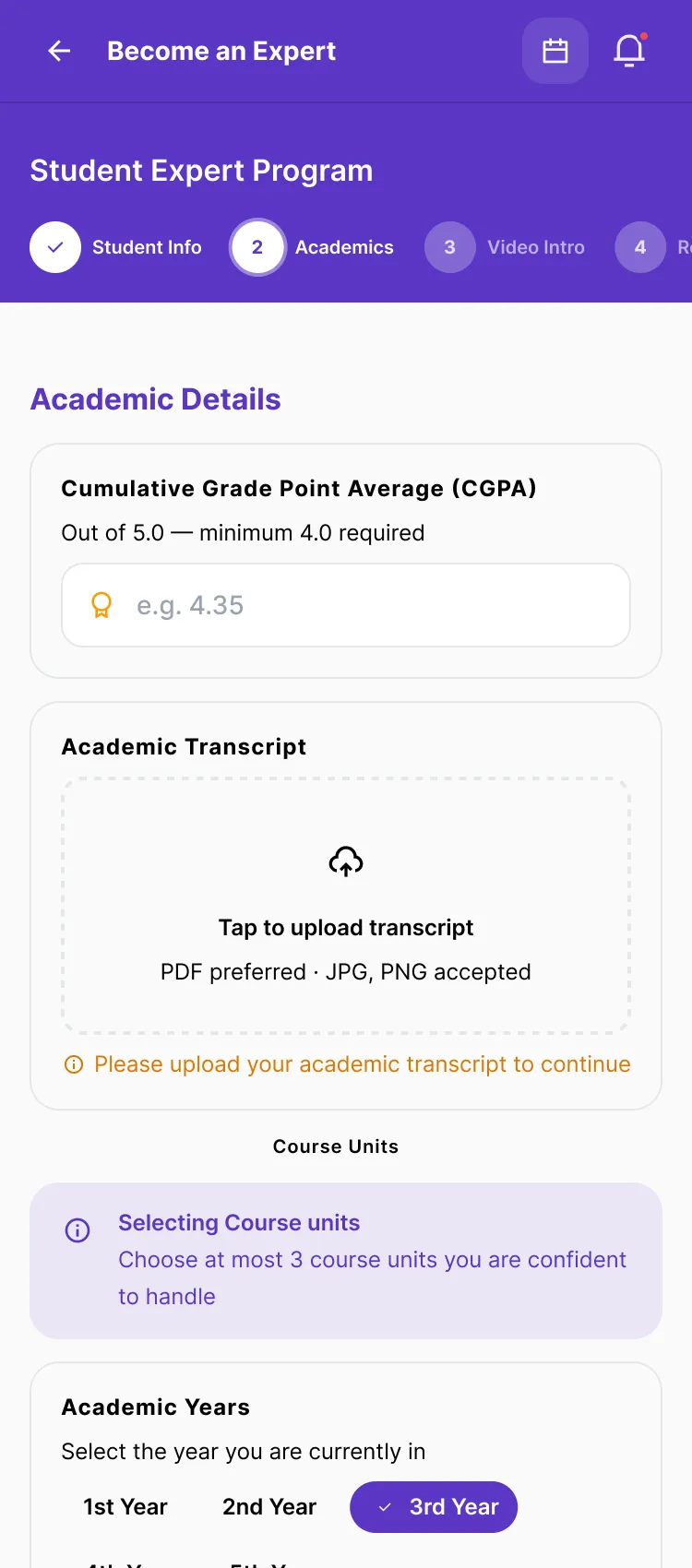
Apply in about five minutes
-
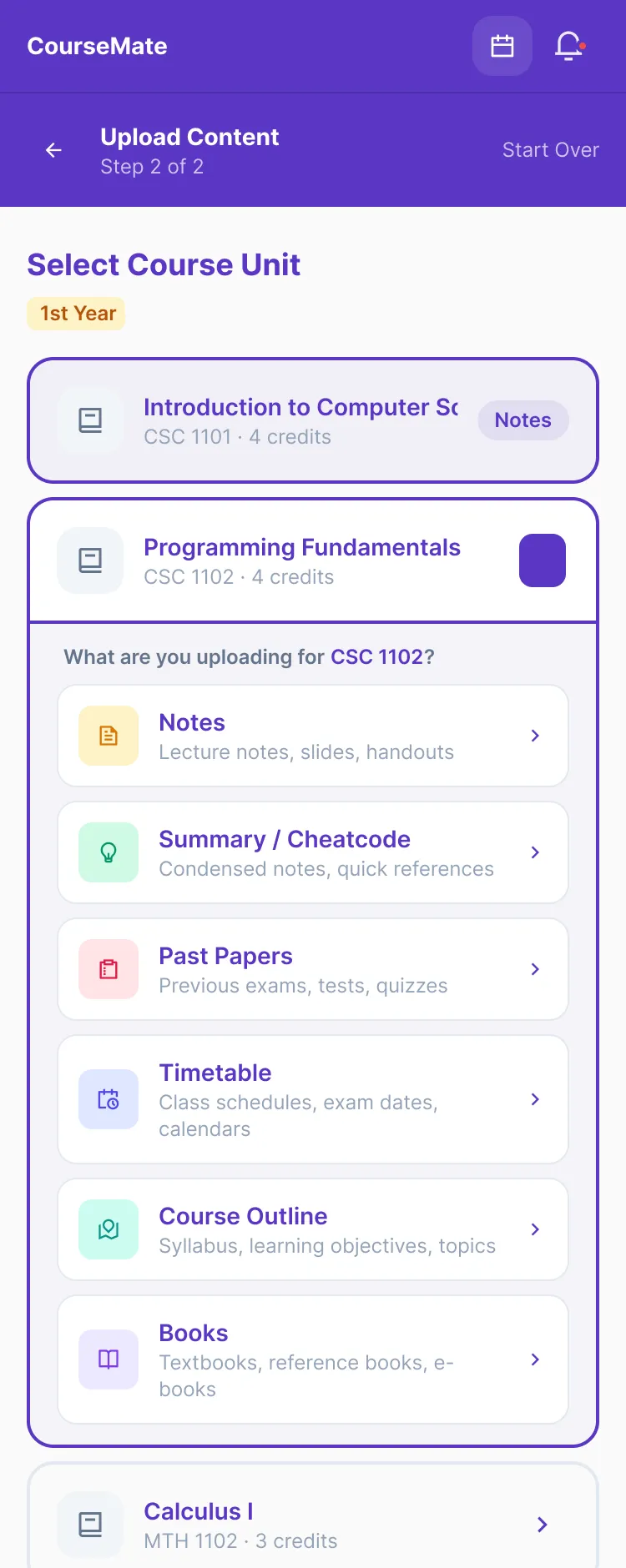
Every file lands in the right unit
-
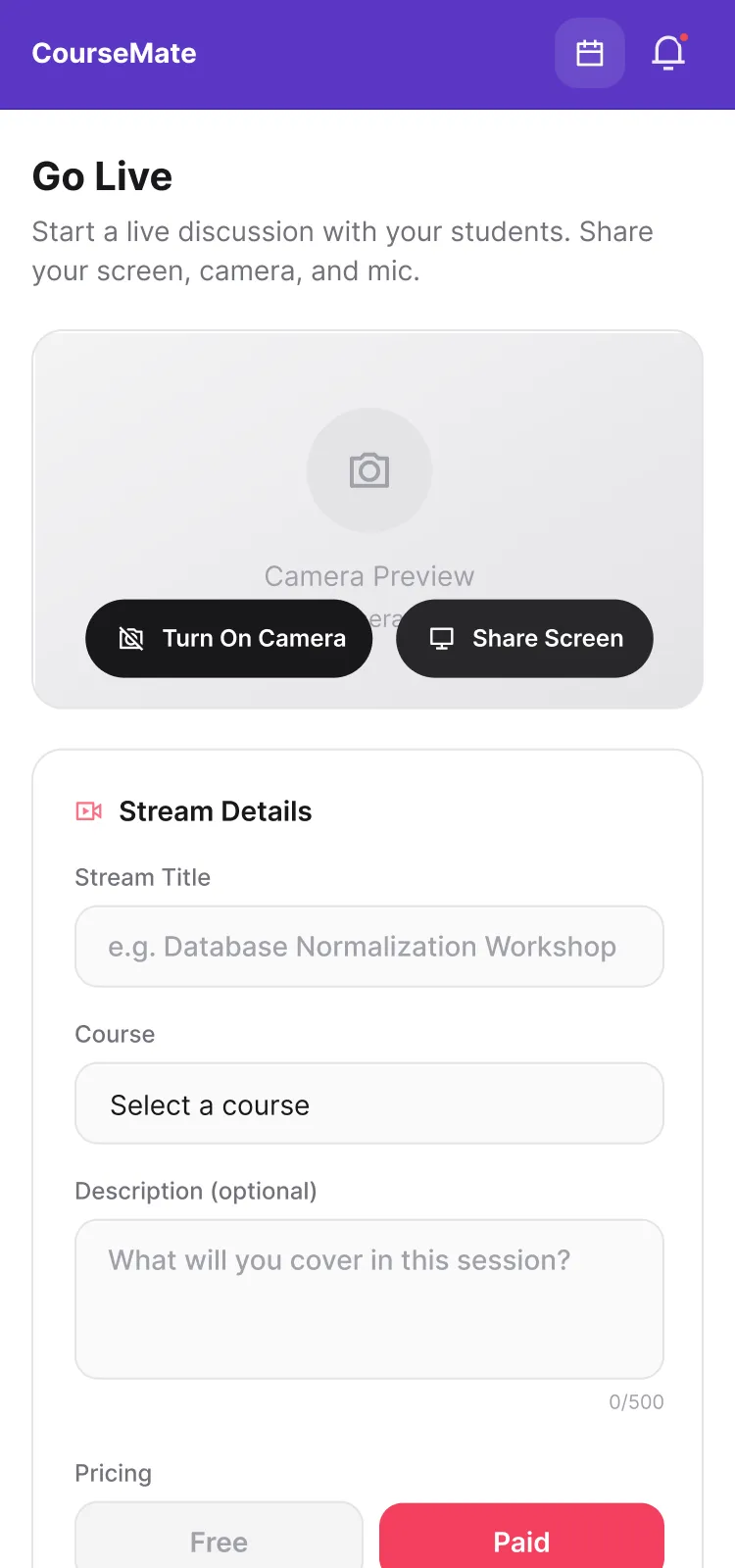
Set up a session in a minute
-
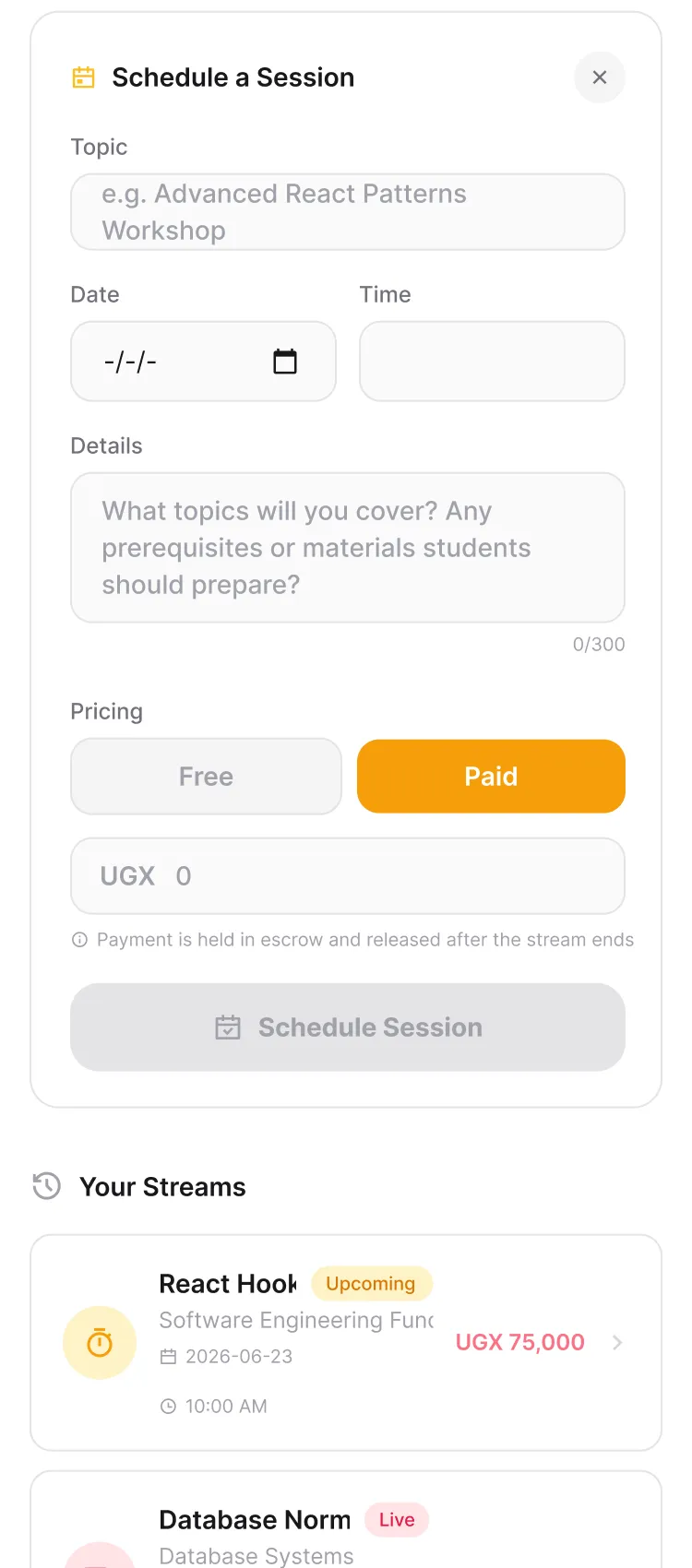
Go live now, or schedule it
-
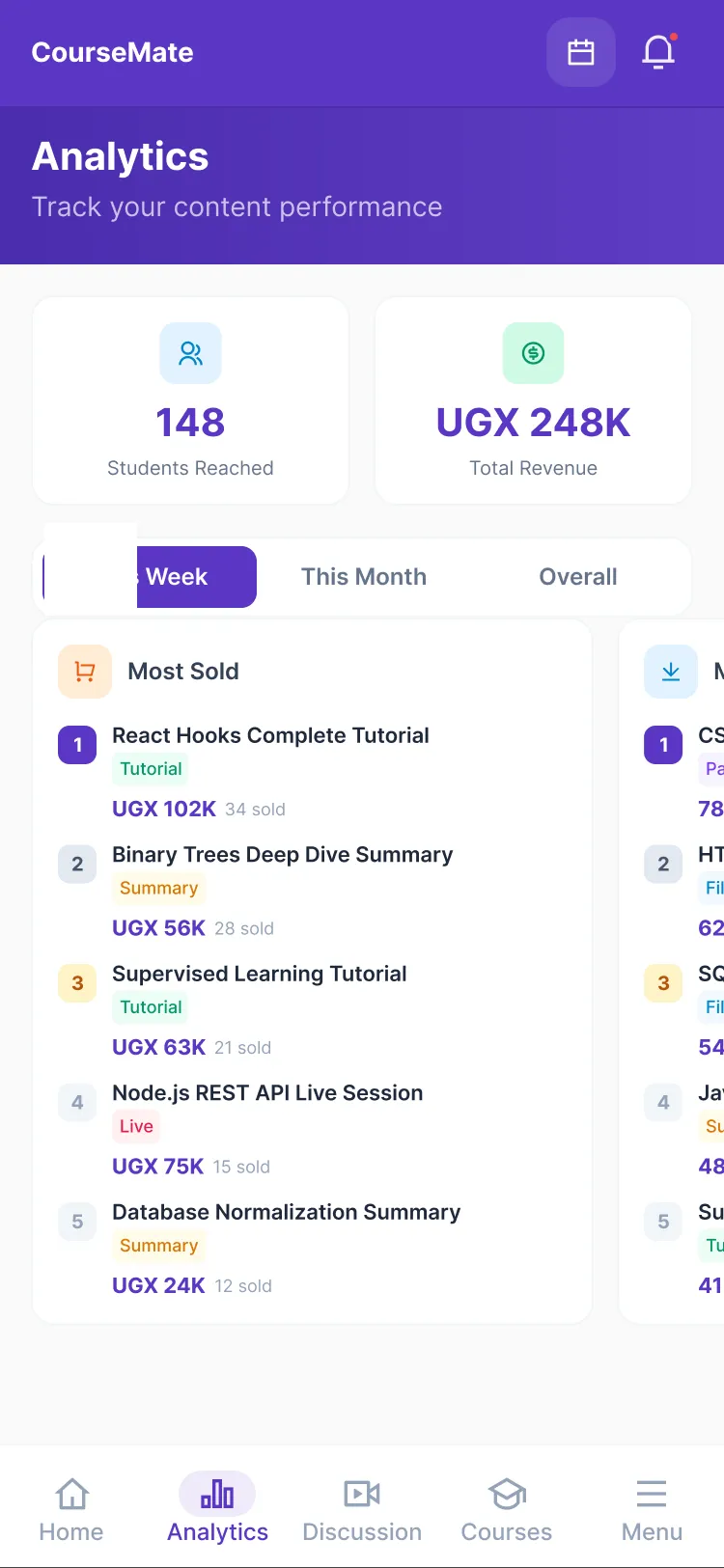
See what is selling
Questions
Who can become a Student Expert?
Any enrolled undergraduate with a student ID, a transcript and a verifiable phone number. You apply for up to three course units from your own programme.
Is there a minimum CGPA?
You enter your CGPA out of 5.0 and it is verified against your transcript. Approval is decided by the admin team on the strength of the whole application.
How long does approval take?
Student Expert applications are reviewed within 1–3 business days. You are notified in the app either way.
Can I change the course units I teach?
Not from the app yet. You can withdraw a pending application and resubmit; once approved, contact support to add or change units.
What can I upload?
Video tutorials, notes, summaries/cheatcodes, past papers, timetables, course outlines and books — up to 20 files at a time, each tied to a course unit.
What can I charge?
Anything from free to UGX 999,999 per item, except notes, which are always free. Live sessions start at UGX 1,000.
Why are notes free?
Lecture notes are the baseline every student needs. Making them free brings students to your course unit, where your paid tutorials, summaries, papers and sessions sit.
What does CourseMate take?
A platform fee on content sales and on the session price, plus a small session fee paid by the student on top of your price. The exact figures are shown in the app before you publish.
When do I get paid?
Content sales are credited to your wallet when a student unlocks the item. Session payments are released from escrow when the session ends. You withdraw whenever you like.
Is there a minimum withdrawal?
Yes; the app shows the current minimum when you withdraw.
What if I cancel a session?
You can delete a scheduled session before it starts. Students who bought seats are refunded from escrow.
Do students have to pay to see my content?
They see a preview first — the opening of a document or a sample of a video — and pay only to unlock the rest. Free items are fully open.
Can I delete content I have uploaded?
You can edit its title, price, category and course unit yourself. Removal is handled by support — contact us with the item and we will take it down.
Do I keep the rights to my content?
Yes. You license it to CourseMate for distribution to students on the platform and remain the owner.
Are live sessions recorded?
Yes. A recording is kept after the session and students who missed it can buy the replay, which pays you like a content sale.
Can a Student Expert stop teaching?
You can switch back to the student view at any time and your content stays live. To close your expert access entirely, contact support.
Know a unit inside out? Teach it.
Apply from the app menu in about five minutes. Your first upload can be live the week you are approved.
Coming soon Launching on iOS and Android.